
Edit your personal details when you want to add or update your contact details, change your password, enter an alternate email address, and more. Contact details entered on this page can be passed automatically into an app instance, where they can be used to populate fields if required.
|
To edit your personal details: |

1.Log in and proceed to the Settings Dashboard.
2.In the tree, go to Personal Settings > Personal Details.
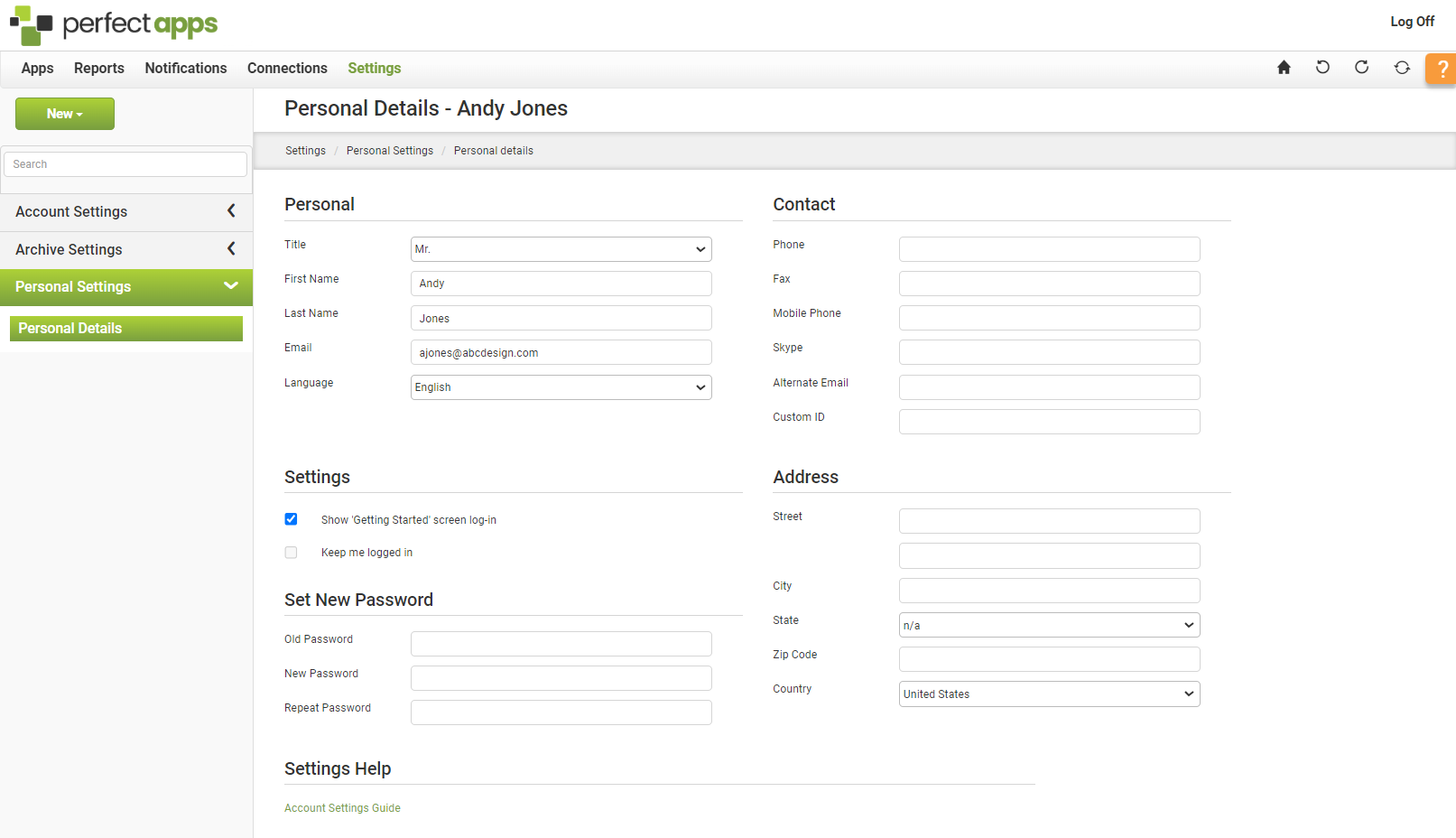
3.Enter or edit details in the following areas:
•Personal - This area allows you to enter your name, email and title information and select a language preference.
•Contact - This area allows you to enter telephone numbers and Custom ID details. Use the Alternate Email field if you want system emails and notifications sent to an email address other than the main address used as the account identifier (i.e., the email address used to log in).
•Address - This area allows you to enter your postal address information.
•Settings - This area allows you to set some PerfectApps account-level options.
oShow 'Getting Started' screen on log-in - This option resets the Getting Started page and ensures that it is displayed each time you log in to the application. This option is disabled if your administrator did not configure the Getting Started page with a sample when your account was created, or if your account was created prior to version 1.16 (released January 11, 2010).
oKeep Me Logged In - Allows you to access PerfectApps without re-entering your username and password as long as you access it from a previously logged-in device.
•Set New Password - This area allows you to establish a new password for the application.
|
Details in the Personal, Contact and Address areas can be passed automatically into an app instance, which can be used to populate fields if required. |

See: Dashboard & Workspace Options Reference Table
Return to: Personal Settings, Settings Dashboard, Dashboards & Workspaces

