
The Archiving Schedule dialog allows you to create a recurring schedule at the system level for archiving app instances.
Specifying Schedule Options
The first step in establishing the schedule is to activate the schedule by selecting the Activate Recurring Archive Schedule check box.
 |
If you have deactivated a schedule and choose to reactivate it, your previous settings will be remembered. |
The next step is to specify archive schedule options to determine which app instances are included in the recurring schedule. You may specify the following:
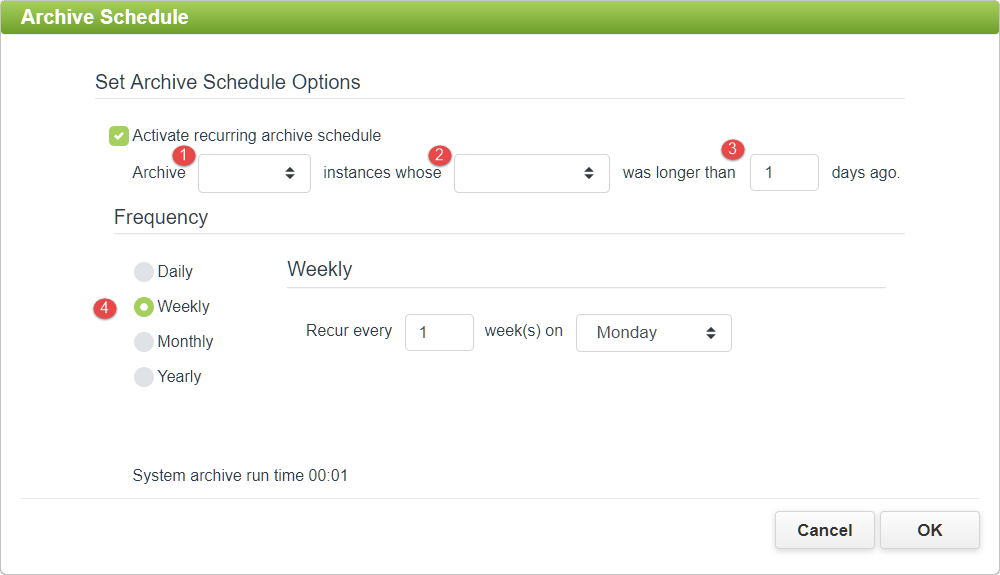
a.Status - Select from any, open, or closed apps to narrow the results based on the current status of the instance.
b.Date Type - Select from the following options:
•First Submission - This selects app instances for the archive schedule based upon the date they were first submitted.
•Last Submission - This selects app instances for the archive schedule based upon the date they were last submitted.
c.Day Count - The numeric value entered here tells the system to include in the archive schedule those app instances whose first (or last) submission was longer than "x" days ago.
d.Frequency - Select from Daily, Weekly, Monthly and Yearly options to determine the frequency of the recurring schedule. The system will default to a Weekly schedule.
|
No matter which Frequency is selected, archiving schedules will always run at the time specified in the 'Daily Archive/Delete Run Time' field on the main Settings page. See the Managing Archiving Settings topic for additional details. |
System Response
Once the schedule has been activated (the 'Activate recurring archive schedule' check box selected) and the OK button clicked, the new schedule is saved. The system will run the first archival of instances on the next date that matches the specified Frequency setting, automatically archiving app instances that meet the specified criteria across all accounts and users in the system.
It should be noted that once an app instance is archived, it will no longer appear in the Edit Apps tree, nor will it display in the app instance summaries found in the Apps Dashboard. Data associated with archived instances will not appear in reports. In addition, any notifications associated with archived instances will be cancelled.
|
The system will never initiate the archive schedule on the same day the schedule was established. The earliest possible day is always the next day. For example, if you set the archive schedule to run every week on Wednesday, and the current date is Wednesday, the first scheduled archival will occur on Wednesday of the following week. |
See also: Initiating a One-time Deletion of Archived Instances
Return to: Administering Archiving Settings, Administering PerfectApps On-Premise, PerfectApps On-Premise

