
|
Navigation: Integration > PerfectApps Connections Migrating Connections |
Scroll Prev Top Next More |
When migrating app connections, it is important to verify that your connections and apps have the correct permissions. This will ensure that the connections work appropriately. See the Connection & Action Permissions topic for additional details.
1.Go to the Connections Dashboard and, in the tree, expand the connection type of the connection that you want to export. 2.In the details area, click the Migrate button. You will be prompted to choose from the options to Import or Export a connection.  3.Choose Export and click OK. 4.You will be prompted to export the connection and its actions. Actions optionally receive data from an app, which they then pass on to the connection, or they can simply call the connection. For a detailed description of connection actions, see Defining Connection Actions 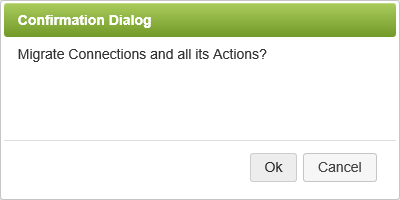 5.Click OK. You are prompted to save the file to your local directory.
|


1.Go to the Connections Dashboard and click Import. 
 2.Click Browse and select the .PA or .PF file that corresponds to the connection you want to import. Click Next.  3.If the connection was uploaded successfully, you will see the success message. Click Done. 4.If needed, you may import the app and any associated reports using this connection. See Importing an App File.
EXAMPLES
Listed below are two specific scenarios dealing with importing app connections. In both examples there is an app used as a data-source for the connection. This means the import order is an exception to the general order mentioned above of Connection - App - Report.
Scenario A - App 1 uses an app connection to get the instances of App 2.
1.Import App 2 and publish the app. 2.Import the connection and test it. 3.Import App 1 and publish the app.
Scenario B - App is using an app connection on itself.
1.Import and publish the app. 2.Import the connection and test it. 3.Use the Migrate button to import the app again as a new version and publish it. |
 Importing a Connection over an existing one
1.Go to the Connections Dashboard and, in the tree, expand the connection type of the connection that you want to import. 2.In the details area, click the Migrate button. You will be prompted to choose from the options to Import or Export a connection. 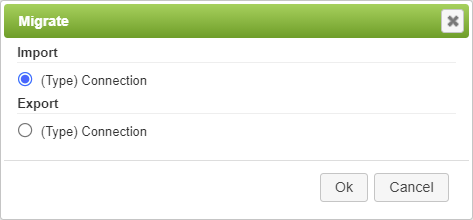 3.Choose Import and click OK. 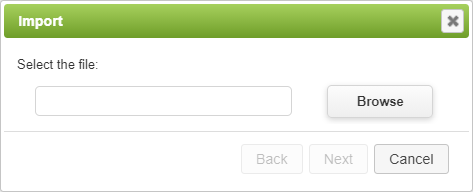 4.Click Browse and select the .PA or .PF file that corresponds to the connection you want to import. Click Next. 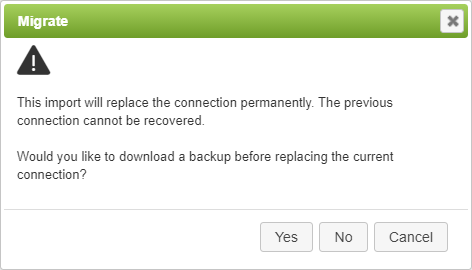 5.Check the warning message carefully, and if you want to download a backup of the original connection, click Yes. To continue without downloading a backup copy, click No. 6.If the connection was uploaded successfully, you will see the success message. Click Done. Any permissions applied to the existing connection and actions will remain unchanged. |
See also: Connection Error Handling
Return to: Integration
PerfectApps ® -- application software, workflow software, and web forms software

