
The Navigation Panel provides a list of the app pages, behaviors, and objects.
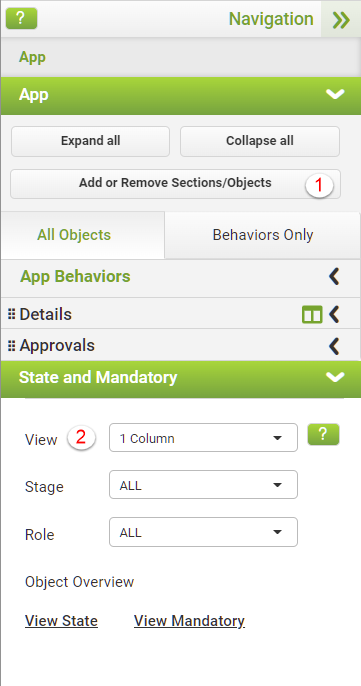
When you select a page from the list, its behaviors and app objects are displayed.
Click on the drill-down arrows for more detail.
The State and Mandatory section allows you to control access to field objects and indicate when input is required. (See Limiting User Access to App Fields for a more detailed description of the State and Mandatory functions.)
In addition to the above, and specifically in Mobile Design mode, you can:
1.Use the Add or Remove Sections/Objects button to reopen the Mobile App Wizard to work with sections and objects.
2.Use the View drop-down to view the app in the canvas in One or Two Columns.
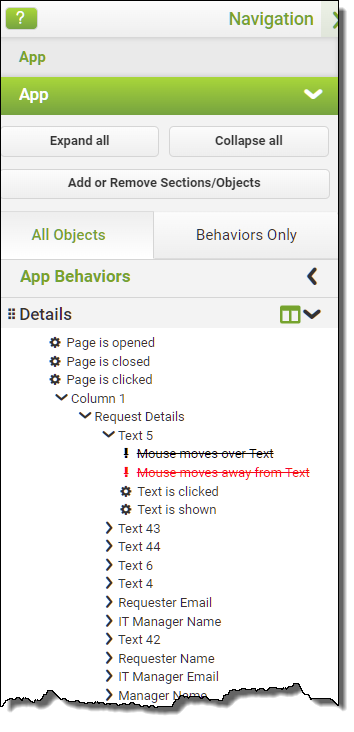
You may also drill down into the different pages, columns, and objects to view the behavior that might be attached to their behavior events. Do be aware that some behavior events, such as mouse-over and mouse-away, are not supported on a mobile device, and these behaviors will be highlighted in the navigation panel.
|
Behavior events with a strike-through in black indicate that the event is not supported in mobile design and has no associated behaviors. |
|
Behavior events with a strike-through in red indicate that the event is not supported in mobile design, but that a behavior is already associated with that event. |

See also: Mobile Layout - Canvas
Return to: Mobile Design

